
OFFERNUDGE 2.3.0 · STEP-BY-STEP GUIDE
From installationto your first offer.
The entire setup, in one place. Install the plugin, configure your store and check the experience before sharing it with your customers.
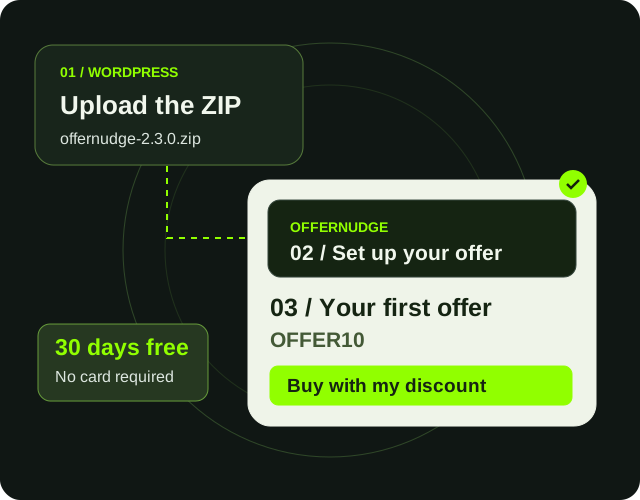
Before you begin
OfferNudge requires WordPress 6.4 or later, WooCommerce 8.0 or later, and PHP 8.0 or later with the Sodium extension. You also need a WordPress account with permission to manage plugins and WooCommerce. If you are replacing an earlier OfferNudge version, create a current backup first. The update preserves existing settings, promotions, coupons, and Analytics data.
STEP 01
Install the plugin
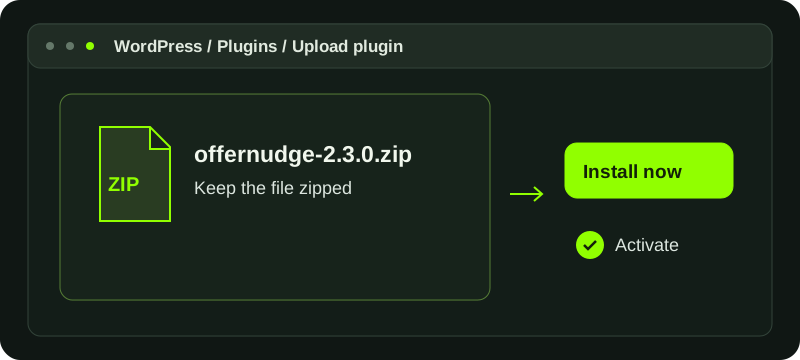
- Download
offernudge-2.3.0.zipfrom OfferNudge.com. Do not unzip it. - Sign in to WordPress.
- Go to Plugins → Add Plugin → Upload Plugin.
- Select the ZIP and choose Install Now.
- If WordPress detects an older OfferNudge version, choose Replace current with uploaded.
- Select Activate Plugin.
Installing or activating the plugin does not start the free trial and does not send your site information to OfferNudge.com.
STEP 02
Start the 30-day free trial
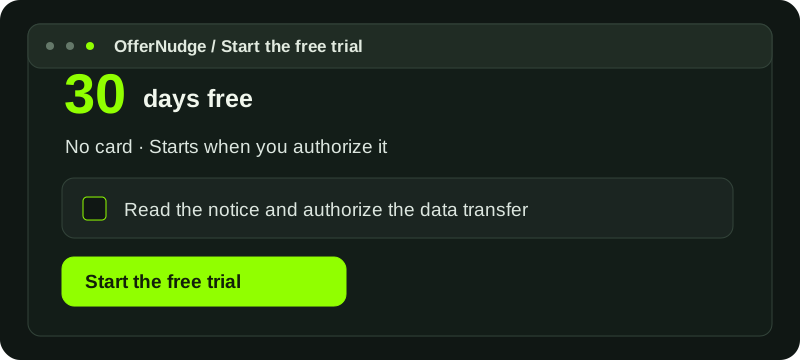
- Open OfferNudge → License.
- Read the notice explaining the information used to register and protect the trial.
- Select I understand and authorize this data transfer to start the trial.
- Choose Start free trial.
No payment method is required. The 30 days begin only after OfferNudge.com successfully registers the installation. Registration sends the site URL, a random installation identifier, the environment and technical versions, and the WordPress administrator email. It does not send store content, customers, orders, Analytics, or visitor identifiers.
STEP 03
Choose the language and visit rules
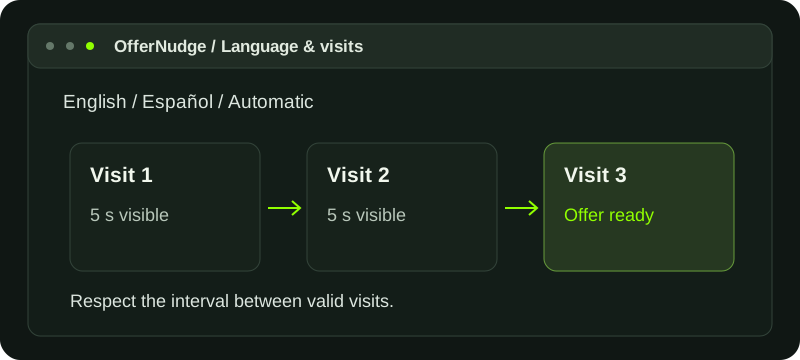
Open OfferNudge → Settings → General.
- English always displays OfferNudge in English.
- Español displays the included Spanish translation.
- Automatic follows the WordPress site language when it is Spanish and otherwise uses English.
Review the number of visits required before an offer appears, the duplicate-visit interval, and how long the visit history remains valid. The initial configuration shows an offer on the third valid product visit. A visit becomes valid after the product page remains visible for five seconds, and refreshing the same product during the duplicate interval does not add another visit.
STEP 04
Configure discounts and exclusions
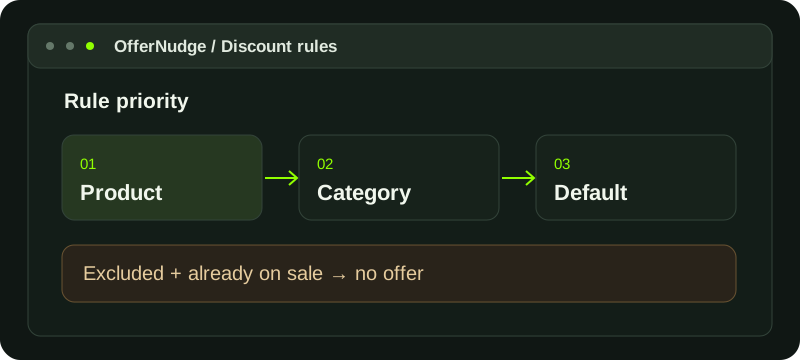
Open OfferNudge → Settings → Rules.
- Set the default discount percentage.
- Add category-specific discounts when required.
- Exclude categories or products that must never receive an OfferNudge promotion.
- Save the settings.
You can also edit an individual WooCommerce product and use its OfferNudge panel to inherit the general rules, assign a special discount, or exclude that product. A product-specific setting has priority over category rules. Products WooCommerce reports as already on sale are excluded automatically.
STEP 05
Configure WhatsApp
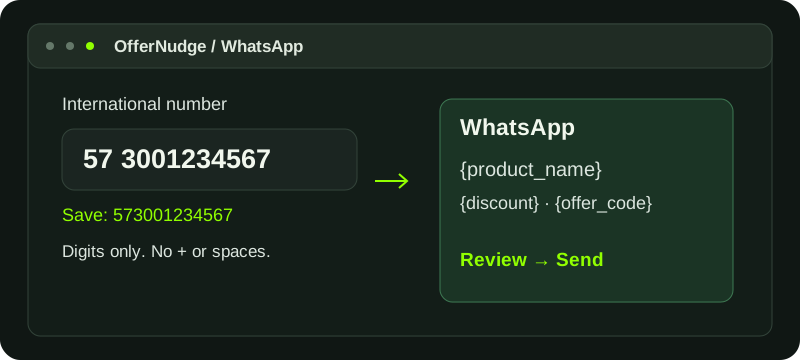
Open OfferNudge → Settings → WhatsApp.
- Enter the number in international format, including the country code.
- Use digits only—do not include
+, spaces, parentheses, or hyphens. Example:573001234567. - Review the message template and its preview.
- Keep the available placeholders, such as
{product_name},{discount},{offer_code},{product_price},{product_url}, and{site_name}, where you want dynamic information to appear. - Save the settings.
Opening the generated WhatsApp link does not send a message automatically. The customer reviews and sends it from WhatsApp.
STEP 06
Customize the offer
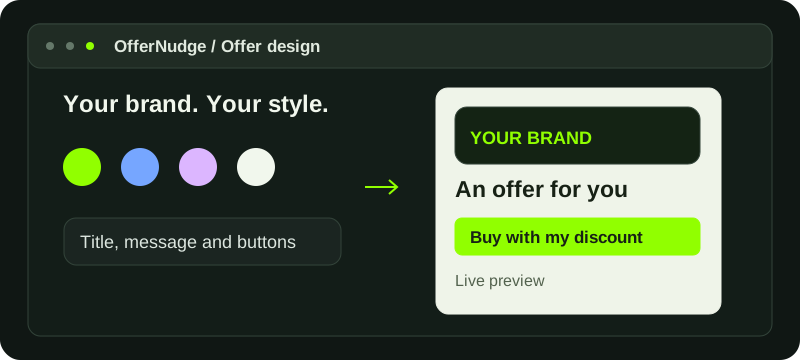
Open OfferNudge → Settings → Design.
- Edit the heading, message, button labels, and floating reminder text.
- Upload or select the brand image.
- Choose whether to use the active theme colors or define OfferNudge colors.
- Check the live preview.
- Save the settings.
The preview is visual only. It does not create coupons, promotions, visits, or Analytics events.
STEP 07
Review privacy and retention
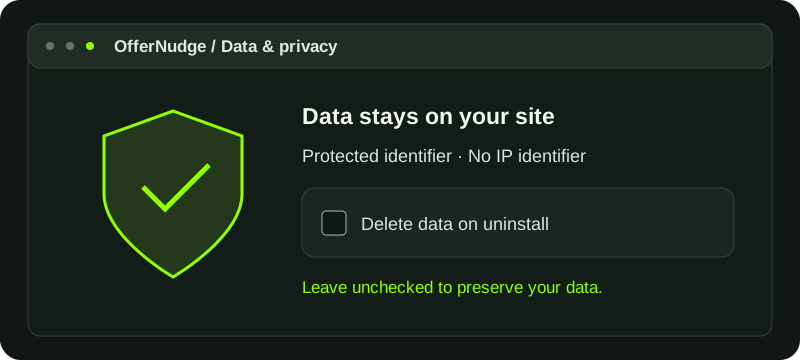
Open OfferNudge → Settings → Data and privacy. OfferNudge recognizes a browser using a random first-party value and stores only a protected HMAC in the WordPress database. It does not use the visitor's IP address as an identifier.
Leave Delete all tables and options on uninstall disabled if you want an uninstall to preserve OfferNudge data. Enable it only when you intentionally want the uninstall process to delete all OfferNudge tables and options.
STEP 08
Test before using it with customers
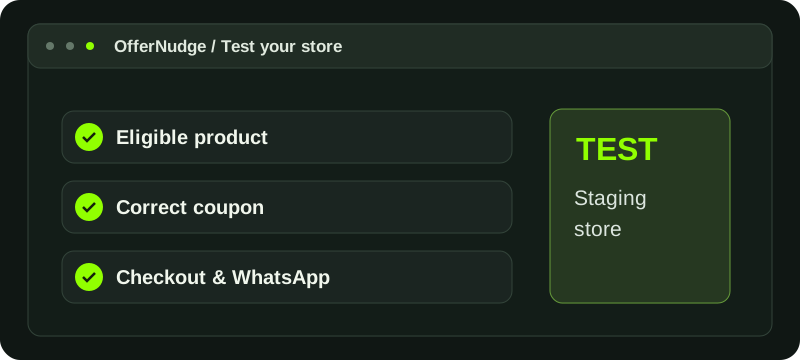
Use a staging store or a test product whenever possible.
- Confirm the product is not on sale and is not excluded.
- Visit the product the configured number of valid times, respecting the duplicate interval.
- Confirm the Bottom Sheet displays the expected product, discount, coupon, expiration, and brand design.
- Test Copy code.
- Test the online purchase button and confirm WooCommerce applies the coupon only to the intended product and one unit.
- Open the WhatsApp option and confirm the number and message, but do not send a real message unless intended.
- Place a test order if your staging process permits it, then review OfferNudge → Dashboard.
STEP 09
Activate a paid license later
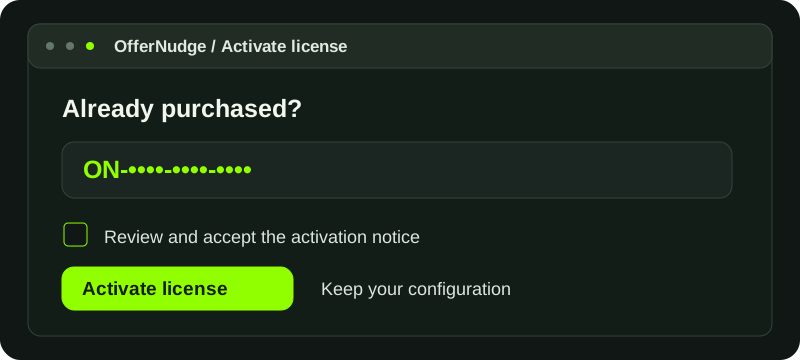
Before the trial ends, you can purchase the annual license from the secure link under OfferNudge → License. After receiving the license key:
- Return to OfferNudge → License.
- Enter the key in the Already purchased? section.
- Read the activation data-transfer notice and select its consent checkbox.
- Choose Activate license.
The existing configuration and Analytics remain on the site. If the trial ends before activation, commercial features pause in read-only mode without deleting data.
Troubleshooting
- The trial does not start: confirm the site can make outbound HTTPS requests to
offernudge.com, verify the administrator email in WordPress, and try again from OfferNudge → License. - No offer appears: confirm WooCommerce is active, the trial or license is active, the product is not on sale or excluded, and the visit threshold and interval have been met.
- WhatsApp does not open correctly: save the number again using country code and digits only.
- The automatic purchase button is unavailable: simple and variable products are supported. A variable product requires a selected variation. Other product types retain code copy and WhatsApp.
- An update is not offered: private updates require an active trial or license and a valid connection to OfferNudge.com.
READY FOR THE NEXT STEP
A new nudge for your store.
Return to the site to explore OfferNudge or continue with your annual license.